Azure Communication Services は、リアルタイム コミュニケーション基盤となるサービスで、テキスト | 音声 | ビデオ によるコミュニケーションのハブとなり、接続やコントロールを行うアプリやサービスを SDK などを用いて容易に開発できます。
今回は、Azure Communication Services を使ったアプリ開発の第一歩として、音声通話ができるまでを手順を追って確認し、Node.js の Web アプリを作成してみます。
開発環境
- 開発環境
- Windows 10 (Build 19042)
- Visual Studio Code (ver 1.50.0)
- Node.js (12.14.1)
- 利用ライブラリー、フレームワークなど
- Azure Communication Services
- Webpack: webpack@5.0.0、webpack-cli@4.0.0、webpack-dev-server@3.11.0
0. 事前準備
Azure Communication Services ことはじめ (1) : チャットができるまでの 0.事前準備と同様に、Azure Portal で Azure Communication Services のサービスを作成し、接続文字列とエンドポイントを取得しておきます。
1. 音声通話ができるまで
今回は Node.js、Web アプリを念頭に、音声通話ができるまでの手順を確認します。
1-0. ライブラリの追加
以下のライブラリを冒頭に追加します。
| ライブラリ | |
|---|---|
| azure/communication-common | ユーザーの作成、アクセストークン取得 |
| azure/communication-administration | (同上) |
| azure/communication-calling | 音声通話のコントロール |
import{AzureCommunicationUserCredential}from'@azure/communication-common';import{CommunicationIdentityClient}from"@azure/communication-administration";import{CallClient}from"@azure/communication-calling";1-1. ユーザーを作成し、アクセストークンを取得する
接続文字列を用いて CommunicationIdentityClient を新規作成し、ユーザーの作成とアクセストークンの取得を行います。接続文字列には Azure Communication Services にアクセスするキーが含まれています。アクセストークンの種類は Calling を指定します。(他に Chat, SMS があります)
YOUR_CONNECTION_STRING は 事前準備で取得した 接続文字列に置き換えてください。
constidentityClient=newCommunicationIdentityClient("YOUR_CONNECTION_STRING");letuserId;letuserToken;identityClient.createUser().then(userResponse=>{userId=userResponse.communicationUserId;identityClient.issueToken(userResponse,["voip"]).then(tokenResponse=>{userToken=tokenResponse.token;}1-2. 通話クライアントを作成
取得したトークンを用いて、音声通話をコントロールする CallClient を作成します。
letcallClient;consttokenCredential=newAzureCommunicationUserCredential(userToken);callClient.createCallAgent(tokenCredential).then(agent=>{callAgent=agent;}1-3. 通話する
CallClient から、通話したい相手を CommunicationUserId で指定して Call します。
letcallcall=callAgent.call([{communicationUserId:"8:echo123"}],{});1-4. 通話を終了する
Call を終了して音声通話を終了します。
call.hangUp({forEveryone:true});2. コンソールアプリの開発
以上の手順を踏まえて、Visual Studio Code で Node.js Web アプリを作成します。
2-1. 新規 Node.js アプリの作成
Node.js アプリを作成するフォルダーを作成し、Visual Studio Code で開き、npm initコマンドで package.json を作成します。
npm init -y
2-2. Azure Communication Services のライブラリのインストール
npm installコマンドで Azure Communication Services の必要なライブラリ (パッケージ) をインストールします
npm install @azure/communication-common --save
npm install @azure/communication-administration --save
npm install @azure/communication-calling --save
2-3. Webpack のインストール
今回は Webpack を利用して、JavaScript のモジュールバンドル & ローカルでの実行確認 を行います。npm installコマンドで、webpack、webpack-cli、webpack-dev-server をインストールします。
npm install webpack webpack-cli webpack-dev-server --save-dev
2-4. コーディング
画面 (index.html)
ユーザーからの操作および音声入出力、各種情報を表示するため、index.html という名前でファイルを作成し、以下のような UI を作成します。
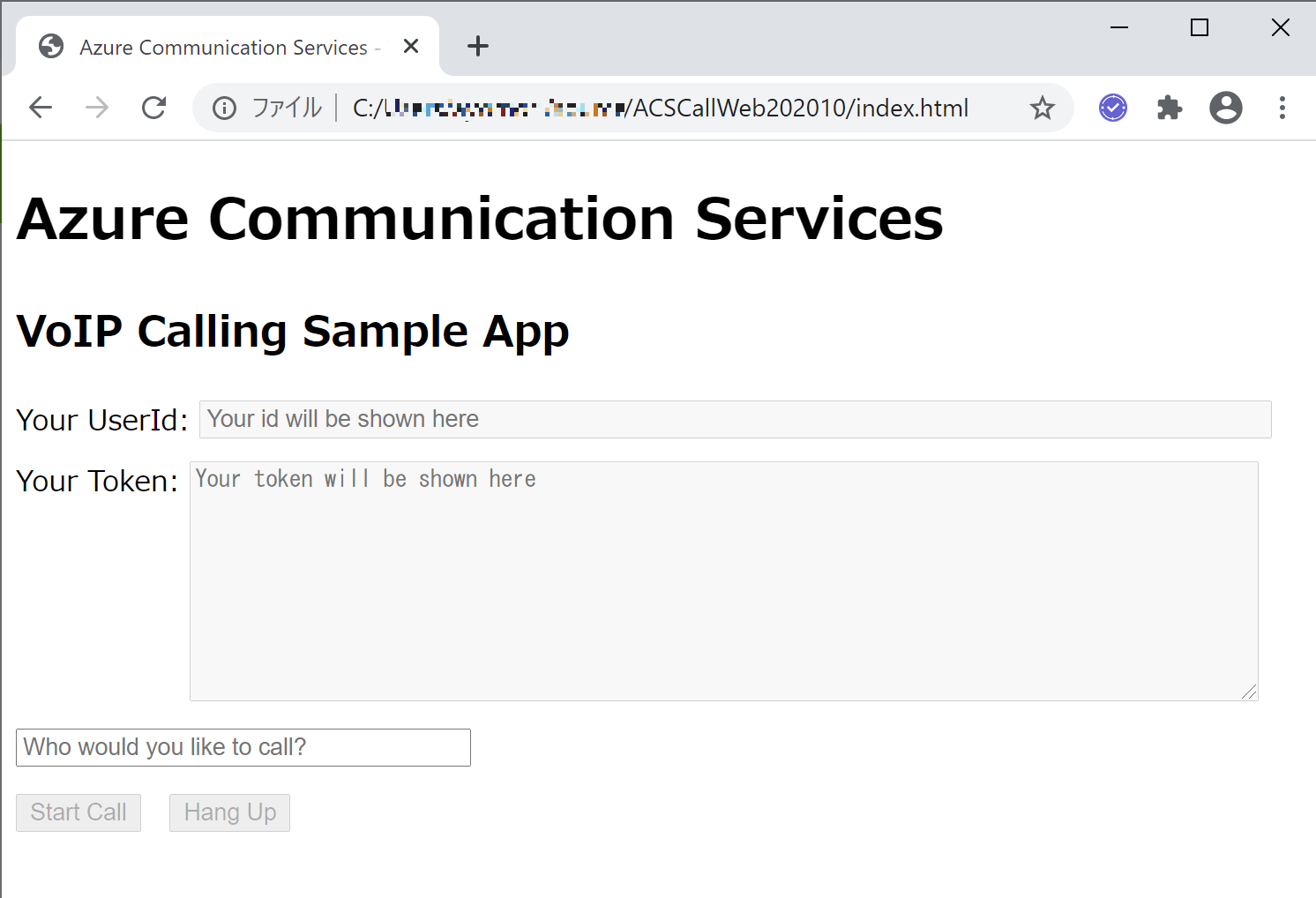
ポイントとなるコードは以下になります。
<html><body><div><!-- UserId 出力--><label>Your UserId: </label><inputid="caller-id-output"type="text"style="width: 600px;"disabled="true"/></div><div><!-- UserToken 出力--><label>Your Token: </label><textareaid="caller-token-output"type="text"style="width: 600px; height: 130px;"disabled="true"></textarea></div><div><!-- 呼び出し先 UserId 入力--><inputid="callee-id-input"type="text"style="width: 250px;"/></div><div> <!-- 通話開始、終了ボタン --><buttonid="call-button"type="button"disabled="true">Start Call</button><buttonid="hang-up-button"type="button"disabled="true">Hang Up</button></div><div><!-- 状態メッセージ出力 --><labelid="message-output"style="width: 1000px; height: 50px;"></label></div><script src="./index.js"></script></body></html>加筆を行って整えたコードは以下になります。
ACSCallWeb202010/index.html
通話機能 (client.js)
client.js という名前でファイルを作成し、VoIP 通話をコントロールする機能を記述します。
後ほど client.js を index.js にビルドして index.html で読み込みます。
利用ライブラリー
今回は、これらのライブラリーを利用します。
import{AzureCommunicationUserCredential}from'@azure/communication-common';import{CommunicationIdentityClient}from"@azure/communication-administration";import{CallClient}from"@azure/communication-calling";接続文字列
client.js に connectionString を記載しておきます。
YOUR_CONNECTION_STRING は 事前準備で取得した 接続文字列に置き換えてください。
セキュリティの観点から別の設定ファイルなどに記載して読み出すのが一般的ですが、今回は動作を確認するのみのアプリなので本体に記載しています。
letconnectionString="endpoint=YOUR_CONNECTION_STRING";UI 画面の入出力
呼び出しを行う相手先の UserId の入力を取得できるようにします。
また、通話の開始、終了のボダンのクリックを取得できるようにします。
出力は、UserId、UserToken、動作に対するメッセージを表示するようにしておきます。
// 入力constcalleeInput=document.getElementById("callee-id-input");//通話先 UserIdconstcallButton=document.getElementById("call-button");//通話開始ボタンconsthangUpButton=document.getElementById("hang-up-button");//通話終了ボタン// 出力constcallerIdOutput=document.getElementById("caller-id-output");//UserIdconstcallerTokenOutput=document.getElementById("caller-token-output");//UserTokenconstmessageOutput=document.getElementById("message-output");//状態メッセージCommunicationUser の新規作成、Token の取得、CallAgent の生成
接続文字列から User を新規作成して Token を取得します。Token を利用して、通話のコントロールを行う CallAgent を生成します。CAllAgent が無事生成出来たら callButton (通話開始ボタン) をクリック可能(disabled = false)にします。
constidentityClient=newCommunicationIdentityClient(connectionString);constcallClient=newCallClient();letcallAgent;letcall;identityClient.createUser().then(userResponse=>{callerIdOutput.value=userResponse.communicationUserId;// UserID 画面出力identityClient.issueToken(userResponse,["voip"]).then(tokenResponse=>{constuserToken=tokenResponse.token;callerTokenOutput.value=userToken;// UserToken 画面出力messageOutput.innerText+="Got user token.";// 状態メッセージ画面出力consttokenCredential=newAzureCommunicationUserCredential(userToken);callClient.createCallAgent(tokenCredential).then(agent=>{callAgent=agent;callButton.disabled=false;// 通話開始ボタンをクリック可能にmessageOutput.innerText+="\nReady to call.";// 状態メッセージ画面出力});});});通話の開始
callButton (通話開始ボタン) がクリックされたら、callAgent から相手の Communication Id (userToCall TextBox から取得) の呼び出しを行います。
callButton.addEventListener("click",()=>{// start a callconstuserToCall=calleeInput.value;call=callAgent.call([{communicationUserId:userToCall}],{});// change button states & adding messageshangUpButton.disabled=false;// 通話停止ボタンをクリック可能にcallButton.disabled=true;// 通話開始ボタンをクリック不可にmessageOutput.innerText+="\nCall started.";// 状態メッセージ画面出力});通話の終了
hangupButton (通話終了ボタン) がクリックされたら、callAgent の通話を切断します。
hangUpButton.addEventListener("click",()=>{// end the current callcall.hangUp({forEveryone:true});// change button states & adding messageshangUpButton.disabled=true;// 通話停止ボタンをクリック不可にcallButton.disabled=false;// 通話停止ボタンをクリック可能にmessageOutput.innerText+="\nNow hanged up.";// 状態メッセージ画面出力});最終的なコードはこちらになります。
ACSCallWeb202010/client.js
3. 音声通話を試してみる
今回は Webpack を利用しているので、client.js を index.js にビルドして起動します。
npx webpack-dev-server --entry ./client.js --output index.js --debug --devtool inline-source-map
起動したら、ブラウザーから http://localhost:8080にアクセスします。
User Id と Token が取得できると [Start Call]のボタンがアクティブになります。
音声通話テスト用のユーザーである 8:echo123を入力して [Start Call]をクリックします。
"Hello, welcome to Azure Communication Services audio testing system..." と音声が聞こえれば OK です。音声を録音して再生することで、こちらの音声が取得できていることも確認できます。
